Cutting to music in Premiere Pro starts with knowing where the beats are, and Premiere won’t tell you. Automatic beat detection has been an open feature request on Adobe’s forum for years, and no desktop release through Premiere 26.5 (September 2026) has added it. So every beat marker on a desktop timeline comes from your own tapping or from an extension.
There are more of those extensions than most lists admit, and they do quite different jobs. Some only drop markers. Some cut your clips for you. A few hear individual drums or instruments rather than a tempo grid. This guide covers ten options, what each one is best for, and where each falls short. We make SoundXtract, which is one of them, so we’ve tried to be as fair to the others as we’d want them to be to us.
How to choose
Four questions sort the field quickly:
- Markers or edits? A marker tool tells you where the beats are and leaves the cutting to you (or to Premiere’s own Automate to Sequence). An editing tool places, cuts or trims clips itself.
- The beat grid or the actual hits? A tempo grid knows where beats belong. It can’t tell you where the snare really lands, where the bass changes note, or where a vocal comes in. Tools that detect individual instruments can.
- Local or cloud? Local analysis works offline and never uploads your audio. Cloud analysis needs a connection, and in exchange can run heavier models than a plugin can carry.
- How you pay. One-time licences, subscriptions, per-track credits and free tools are all on this list.
At a glance
| Tool | Best for | Edits the timeline | Per-instrument | Runs | Price (October 2026) |
|---|---|---|---|---|---|
| SoundXtract | Editing to individual instruments | Yes | Yes, plus stems | Cloud | Free tier, then plans |
| BeatEdit 2 | A one-time licence across several Adobe apps | Through Automate to Sequence | No | Local | $99.99 once |
| Auto Edit Clip (blinkl) | Cutting stacked shots to the beat | Yes | Drums | Cloud | blinkl subscription |
| Beat Detector (blinkl) | Offline beat markers in a bundle | Cuts at markers | No | Local | blinkl subscription after a trial |
| Beat Marker Pro | Song sections and drops | Snaps existing cuts | Stems on the server | Both | Free tiers, plus pay per track |
| BeatMaxing | Drum-hit markers on Apple Silicon | No | Drums | Not stated | Free for now |
| Cut to Beat | The cheapest paid marker panel | No | No | Local | $4.99 |
| BeatMarker | Free and open source | No | No | Local | Free |
| Premiere on its own | A short clip with an obvious beat | Automate to Sequence | No | Your ears | Free |
| Premiere on iPhone | Editing on a phone | Snapping only | No | On device | Included |
Prices and features change. Each entry links the vendor’s own page, and that page wins over this table.
SoundXtract
Best for: editors who want the timeline built from what each instrument plays, without leaving Premiere.
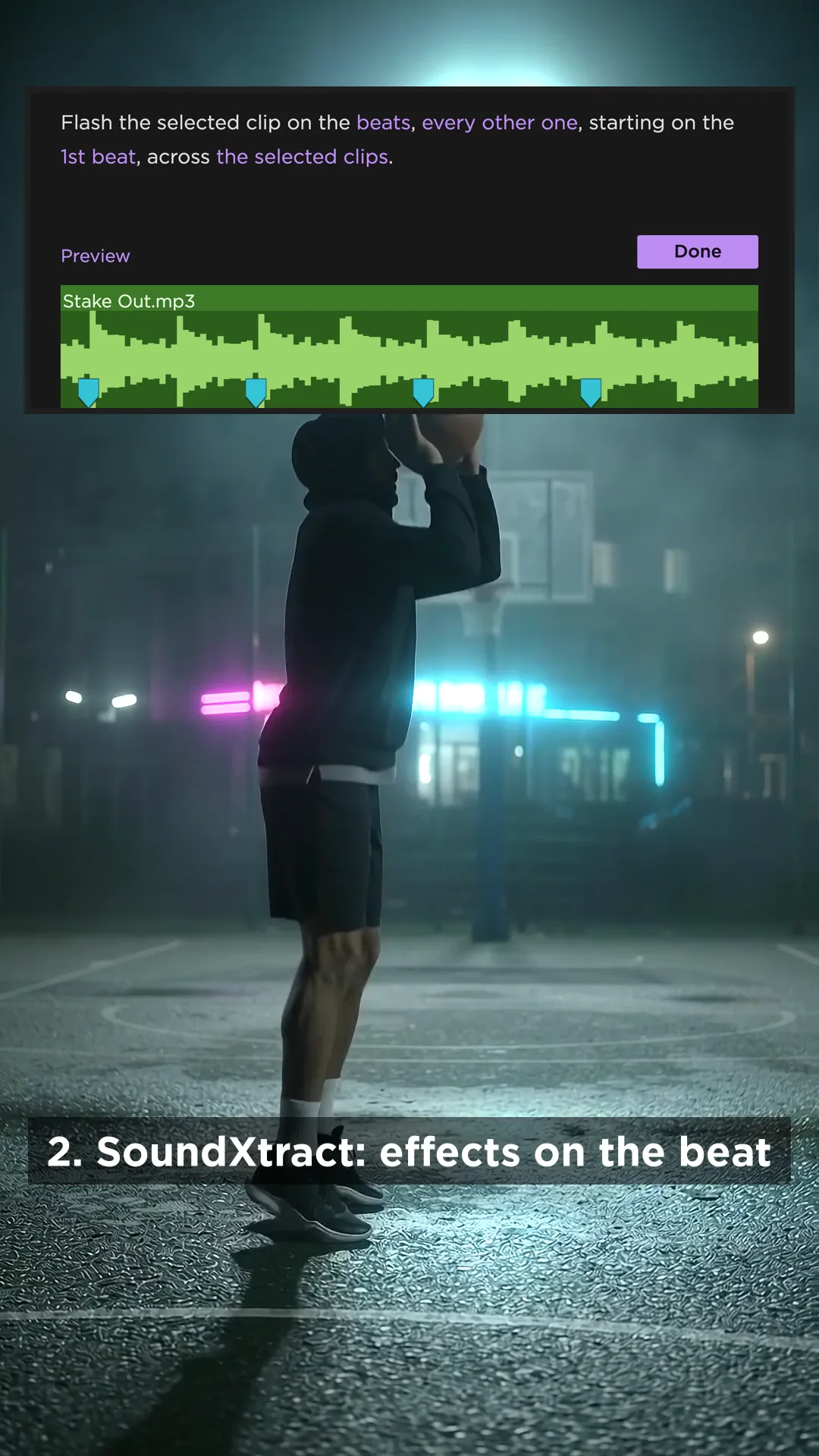
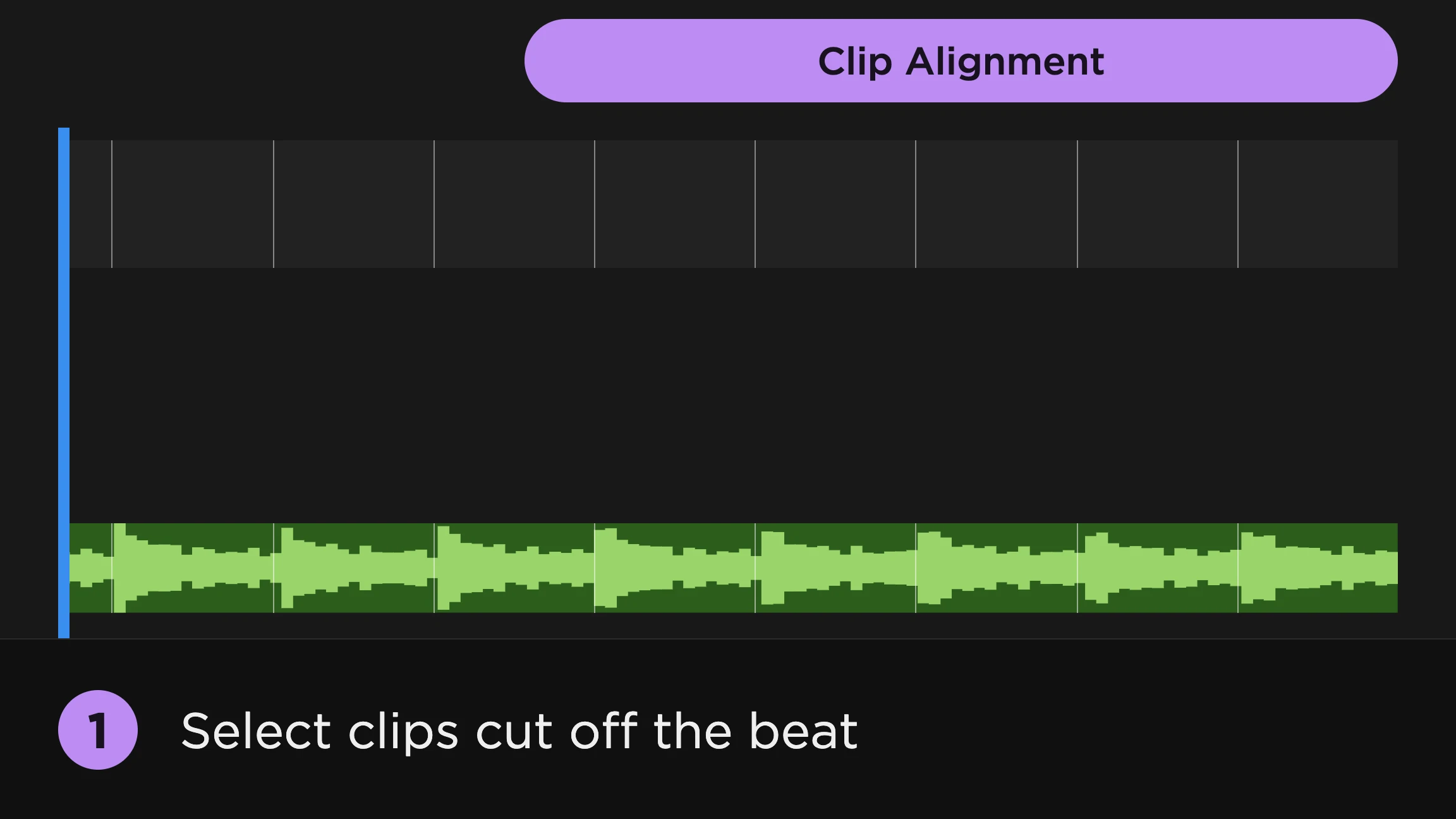
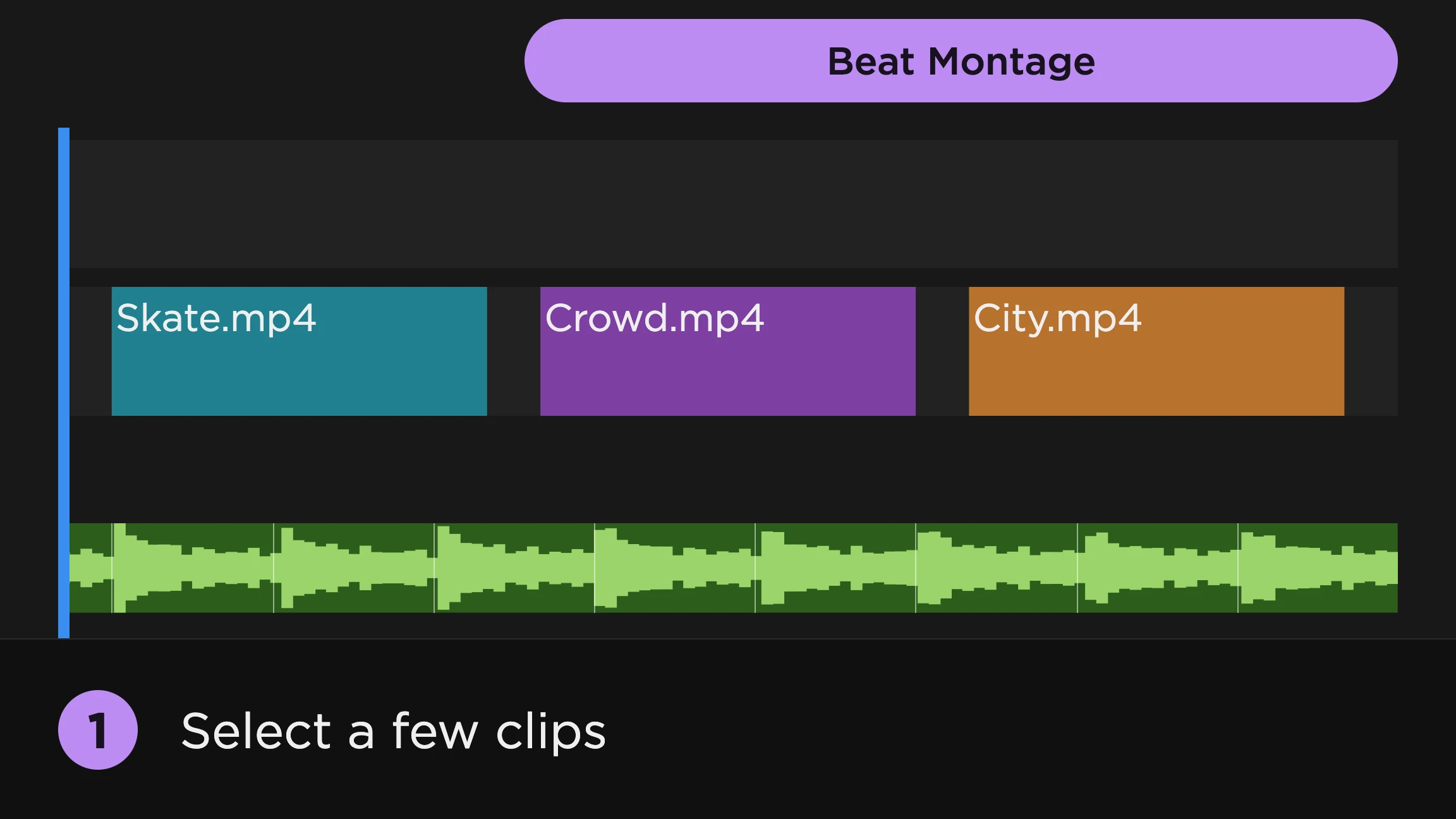
SoundXtract separates the song into stems, then finds beats, downbeats and the hits of individual instruments: kicks and toms, snares and cymbals, bass notes and melody notes. It writes them as ordinary Premiere markers, and its workflows go further than markers: Clip Alignment snaps the cuts of an existing edit onto the beat, Beat Montage places and trims clips on the beat, from the timeline or the Project panel, Cut Clips cuts clips already on the sequence, and Switch Between Tracks switches between stacked angles on the beat. The same analysis drives audio-reactive effects (flash, bounce, camera shake, color switches) on the hits of one instrument, and the stems are usable as audio.
Pros
- Markers on instrument hits, not only on the tempo grid.
- Edits the sequence itself: aligns, cuts and re-trims clips.
- Stem separation and audio-reactive effects in the same panel.
- Detection runs server-side and improves without a reinstall.
Cons
- Analysis runs on our servers, so it needs an internet connection.
- Metered by music clip: 3 free to start, then 1 a month free, or 10 and 30 a month on the paid plans.
- Premiere Pro only. No After Effects, Audition or Resolve version.
BeatEdit 2
Best for: a one-time purchase, especially if you also edit to music in After Effects, Audition or DaVinci Resolve.
BeatEdit by mamoworld is the longest-standing beat plugin for Premiere. It detects the beats, writes sequence or clip markers, colour-codes them so bars are easy to read, and lets you batch-move or delete them. Assembling an edit against those markers goes through Premiere’s own Automate to Sequence. BeatEdit on aescripts.
Pros
- $99.99 once, with a free trial. No subscription, no monthly limit.
- Versions for After Effects, Audition and Resolve (sold separately or bundled).
- Long track record and support back to old Premiere versions.
Cons
- Follows the beat grid; it doesn’t detect individual instruments.
- Doesn’t place, cut or trim clips itself.
We compare the two in detail in SoundXtract vs BeatEdit.
Auto Edit Clip (blinkl)
Best for: stacking your shots on video tracks and having them cut to the music in one pass.
Auto Edit Clip comes from blinkl, part of the same company as AutoCut. It analyzes the music in the sequence and cuts between the stacked video tracks on the beats you choose: every beat, downbeats, kicks, snares or cymbals, with a minimum cut interval. It can add flashes, kick effects and transitions, and you can swap a shot afterwards without losing sync. Auto Edit Clip guide.
Pros
- Cuts the edit for you, from footage you’ve already laid out.
- Can follow kick, snare or cymbal hits, not only the beat.
- Effects and transitions in the same pass.
Cons
- Uploads the audio for analysis, so it needs a connection; blinkl says the audio is deleted after 12 hours.
- Analyzes up to 10 minutes at a time.
- Comes with a blinkl subscription; it isn’t in AutoCut’s own plans.
Beat Detector (blinkl)
Best for: plain beat markers that work offline, if you’d use other blinkl tools too.
Beat Detector runs in blinkl’s panel, places a marker on every beat (or every other beat, or every bar) as sequence or clip markers, shows the BPM, and can slice selected tracks at the markers. Detection runs on your machine. Beat Detector.
Pros
- Local and offline.
- Simple: sensitivity, BPM range and marker frequency.
- Can cut selected tracks at the markers.
Cons
- No per-instrument detection, and blinkl notes sparse results on tracks without drums.
- After the 14-day trial it needs a blinkl subscription (about $75 a year for one extension, $99 for all of them, at early-bird prices).
Beat Marker Pro
Best for: marking the structure of a song (verses, choruses, drops, the vocal entry) as well as its beats.
Beat Marker Pro by Extreme-Media goes beyond the grid: downbeats, song sections and key moments as coloured markers, beat snapping for cuts you’ve already made, and 4- or 6-stem separation. Its free local mode analyzes offline; the free server mode adds sections and harmony; the premium tiers use your own Google Gemini API key and cost fractions of a cent per track. Beat Marker Pro on Adobe Exchange.
Pros
- Song structure and key moments, not only beats.
- Free tiers, including an offline one.
- Stem separation included.
Cons
- The richer analysis runs on the vendor’s server or through your own Gemini key, which is one more account to manage.
- New, with few public reviews yet.
- Snaps existing cuts rather than assembling an edit.
BeatMaxing
Best for: markers on drum hits (kick, snare, hi-hat or cymbal) on a Mac with Apple Silicon.
BeatMaxing detects drum hits and places a marker on each one, on the music clip already in your timeline. BeatMaxing.
Pros
- Follows actual drum hits rather than the tempo grid.
- Free while it’s new.
Cons
- macOS on Apple Silicon only, and Premiere 25.6 or later.
- Its developer has said it becomes a paid subscription after November 14, 2026.
- Markers only; the cutting is up to you.
Cut to Beat
Best for: the cheapest paid option, when markers are all you need.
Cut to Beat by Key-Farmer creates numbered beat markers at low, balanced or high sensitivity, can generate a guide track, and cleans up only its own markers. It runs locally and deliberately doesn’t edit anything. Cut to Beat.
Pros
- $4.99 at launch.
- Local, and tidy about its own markers.
Cons
- Markers only, on the beat grid.
- Needs a recent Premiere (25.6 or later).
BeatMarker
Best for: a free, open-source beat grid.
BeatMarker is a free UXP plugin on GitHub. It detects the BPM of a WAV or MP3 and adds coloured markers to the source clip in the Project panel: beat 1 in red, 2 and 4 in blue, 3 in yellow. You pick which beats get markers and which beat counts as the one. BeatMarker on GitHub.
Pros
- Free, with the source code public.
- Local, with a confidence readout for the detected BPM.
Cons
- 4/4 only.
- Markers only, on the beat grid, and needs Premiere 25.0 or later.
- A one-person project, so support is best effort.
Premiere on its own
Best for: a short clip with an obvious beat, when you’d rather not install anything.
Select the music clip, play it and press M on every beat. Then select your clips in the Project panel and use Automate to Sequence with placement set to At Unnumbered Markers, and Premiere drops one clip per marker. It’s free and always available, but every tap lands a little behind the beat, so expect to nudge markers on the waveform, and a song change means starting over. Our beat markers guide walks through it.
Premiere’s Remix tool sounds related but isn’t: it rearranges a song to fit a target duration and adds no beat markers.
Premiere on iPhone
Best for: cutting on a phone.
Premiere on iPhone does have beat detection: select the audio, tap Beat and choose Fewer, More or All, and clips snap to the beats it marks. Adobe’s help page. It’s the closest Adobe has come to the desktop feature request, but it stays on the phone.
Working in After Effects instead
If your edit lives in After Effects rather than Premiere, the tools change. FreqReact and Red Giant’s Sound Keys drive any After Effects property from a frequency range you choose, which suits visualizers, lyric videos and motion graphics. Neither runs in Premiere Pro. BeatEdit also sells an After Effects version.
Which one to pick
- Just markers, free: BeatMarker, or tap M yourself.
- Markers, one payment, several apps: BeatEdit.
- Drum hits as markers: BeatMaxing on Apple Silicon, or Beat Marker Pro.
- Song structure: Beat Marker Pro.
- Stacked shots cut to the beat: Auto Edit Clip.
- An edit built from individual instruments, with stems and effects: SoundXtract, whose free tier is enough to try it on a real song.
For more on doing it with SoundXtract, see cutting to the beat, adding beat markers, audio-reactive effects, stem separation, and the clip placement tutorial.